
Before changing a wake phrase, identify the device’s voice chip and firmware. DOIT designs using VB6824 have a corresponding update procedure. For other chips or manufacturers’ boards, consult their own instructions.
This guide follows pages 123 to 124 of the DOIT AI Development Handbook v1.0 and its AI-S3 dual-eye example. The handbook provides links for preset phrases and paid customization. Available phrases, authorization methods and service entry points depend on the service provider’s current offering.
Check the prerequisites
Once you have confirmed that the device uses VB6824, look up its update-mode procedure. Button positions and timing can differ even between devices using the same chip.
The device and computer must be on the same local network. Check connectivity before starting the update so network faults can be distinguished from authorization problems.
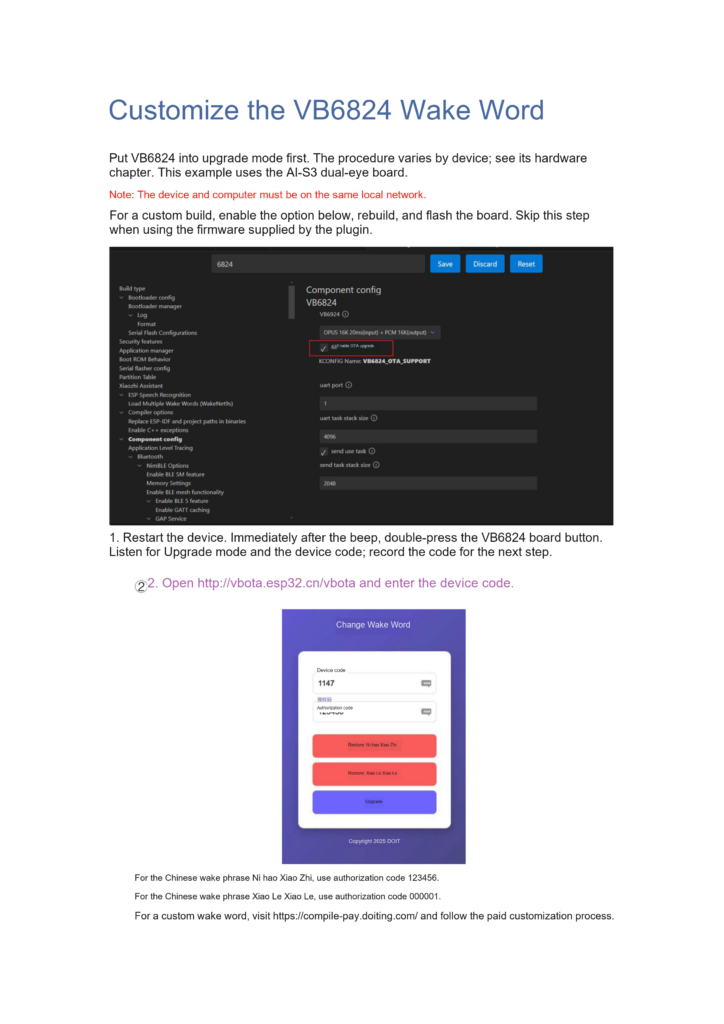
For a source build, the handbook screenshot requires VB6824_OTA_SUPPORT. Search for VB6824 in menuconfig, check the component’s OTA support setting, save, rebuild and flash. Even if the source supports OTA, confirm that the matching build is installed on the device.
The handbook says this compilation step can be skipped when flashing firmware supplied through its plugin. That applies to the accompanying firmware; check OTA entry-point support separately for third-party firmware.
Step 1: Enter VB6824 update mode
For the AI-S3 dual-eye example:
- Restart the device.
- Immediately after the beep, double-press the button on the VB6824 board.
- Wait for the device to announce update mode and its device code.
- Record the code for use on the update page.
Use the VB6824 board button identified in the handbook. Do not substitute the main controller’s BOOT or EN button because it is nearby. If there is no update-mode announcement, check the button and timing before trying codes on the website.
Step 2: Choose a preset or request a custom phrase
Open the VB6824 wake phrase update page listed in the handbook. Enter the recorded device code, then select the phrase and authorization method.
| Target phrase | Authorization described in handbook v1.0 |
|---|---|
| 你好小智 (Ni hao Xiao Zhi, “Hello Xiaozhi”) | Example authorization code: 123456 |
| 小乐小乐 (Xiao Le Xiao Le) | Example authorization code: 000001 |
| Other custom phrases | Apply through the customization service listed in the handbook |
These are Chinese spoken phrases; their English explanations do not replace the words the device listens for. The example codes apply only as specified by the service. If the server rejects an authorization, check the device and service requirements.
Custom phrases can be requested through the customization service listed in the handbook. Follow its phrase selection and authorization procedure. Changing a device name does not train or install a new wake phrase.
Step 3: Validate authorization and update
In the handbook’s procedure, starting the update first triggers authorization validation. After validation succeeds, confirm execution. Wait for the page to report completion, then follow the device prompts to resume normal operation.
The device code identifies the unit being updated; authorization information determines the permitted phrase or service. Enter them in their respective fields. Keep power and networking stable during the update. If an error appears, record its original text and the device state before troubleshooting.
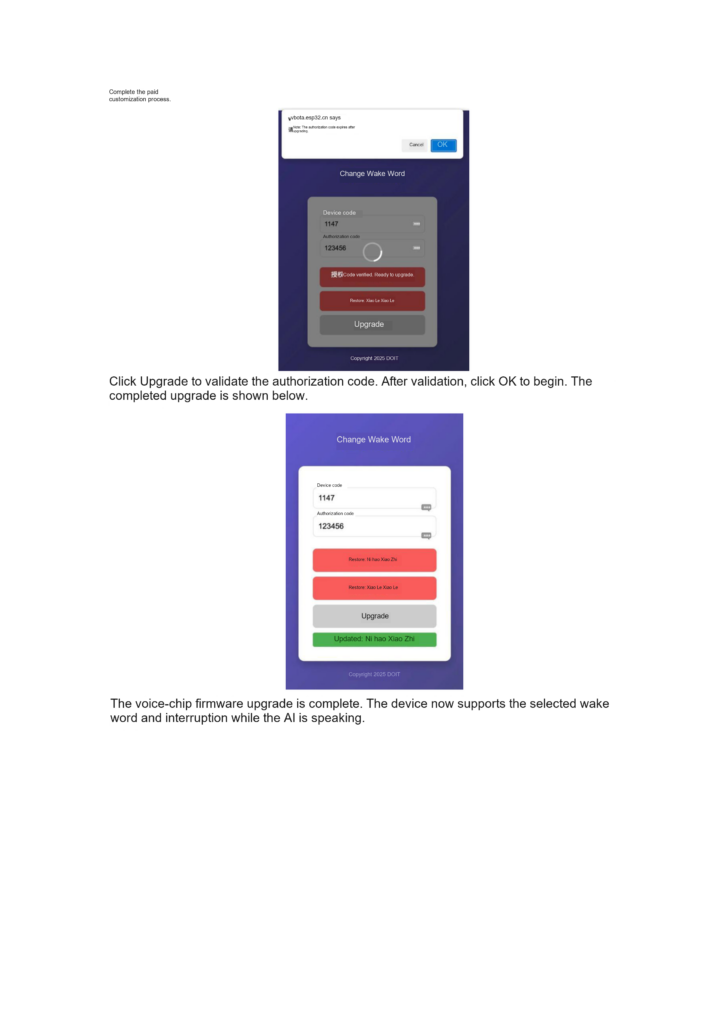
Verify the new phrase
Say the new phrase while the device is idle and check that it starts a conversation. Repeat at different distances. Then let the device give a complete answer and test wake-up during playback.
Record wake-up with the new phrase separately from interruption during playback. The handbook describes both after the matching update, but they still need testing on the firmware combination you use.
If the old phrase still works, check the target firmware’s phrase list and service notes. The documentation does not guarantee that every update removes all previous phrases, so that observation alone does not prove the update failed.
Common questions
Why did changing the agent name leave the wake phrase unchanged?
The agent name is a platform setting. The voice chip’s wake phrase must be updated through its supported procedure. This guide covers the VB6824 voice component.
Should I reflash the whole device if the page cannot find it?
First check update mode, the device code, the shared local network and OTA support in the installed firmware. Rebuild and flash only when the fault points to missing firmware support.
Is voice cloning the same as wake phrase customization?
Test them as separate features. Voice cloning controls how the device speaks. A wake phrase determines which spoken input makes it respond. Describe each separately in product requirements and test records.
Related reading
- Provisioning a Xiaozhi AI device
- Real-time interruption and AEC configuration
Sources
- DOIT AI Development Handbook v1.0 (PDF), pages 123 to 124. The OTA setting name and button timing were checked against the original page screenshots.
Leave a Reply
You must be logged in to post a comment.