
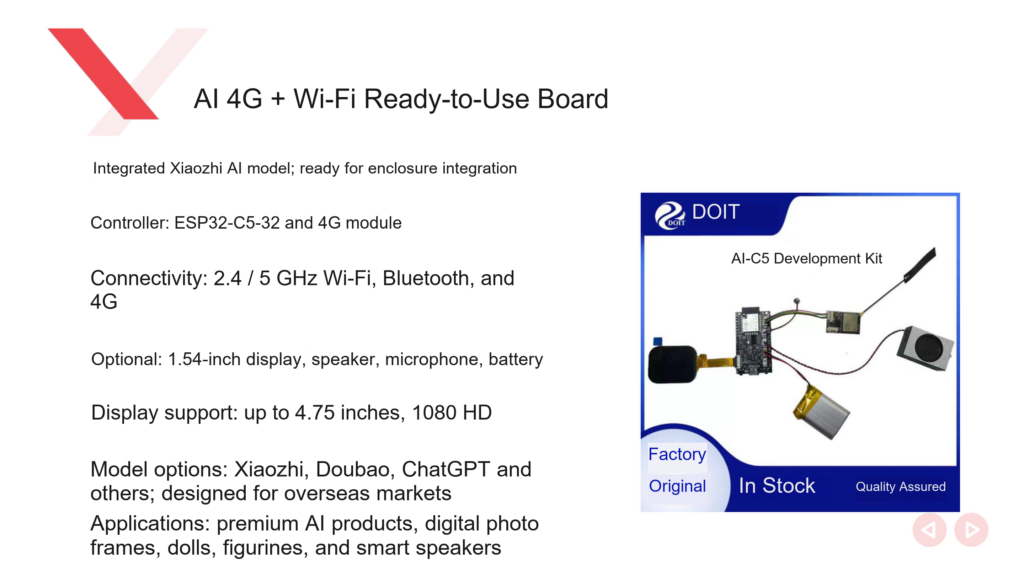
For a Xiaozhi AI device used away from home Wi-Fi, consider AI-C5 with the required 4G accessories. The DOIT handbook describes support for 2.4 GHz and 5 GHz Wi-Fi and connection to a 4G module.
Before buying, check whether the kit includes the module and antenna, and how network service is activated. Board support alone does not provide a working 4G connection. The switching procedure below is limited to the matching example in the DOIT AI Development Handbook v1.0.
Confirm the 4G configuration
Specify the deployment region, network service and delivery scope when requesting 4G. Confirm whether the module is installed, whether the antenna is supplied, whether a SIM card or another activation method is needed, and whether the firmware supports the hardware.
The source does not give a complete list of carriers, bands, fees or international roaming conditions. Ask the supplier to confirm operation in the intended region, especially for overseas deployment.
Keep a record of the board revision, firmware and power configuration. These details help distinguish a module that is not ready from a failed network connection or an unreachable conversation service.
Check a normal startup first
The handbook uses DOIT_AI with the doit-ai-c5-kit-lcd configuration for AI-C5. Its build and flash procedure differs from AI-01, so use the instructions for this board.
After flashing, press EN to reset. The example’s 4G module attempts to connect to the network and Xiaozhi server. Check whether the screen reaches the Xiaozhi standby interface. If it remains at the network waiting screen, investigate connectivity before voice functions.
The example’s automatic connection at startup does not establish automatic seamless roaming between Wi-Fi and 4G.
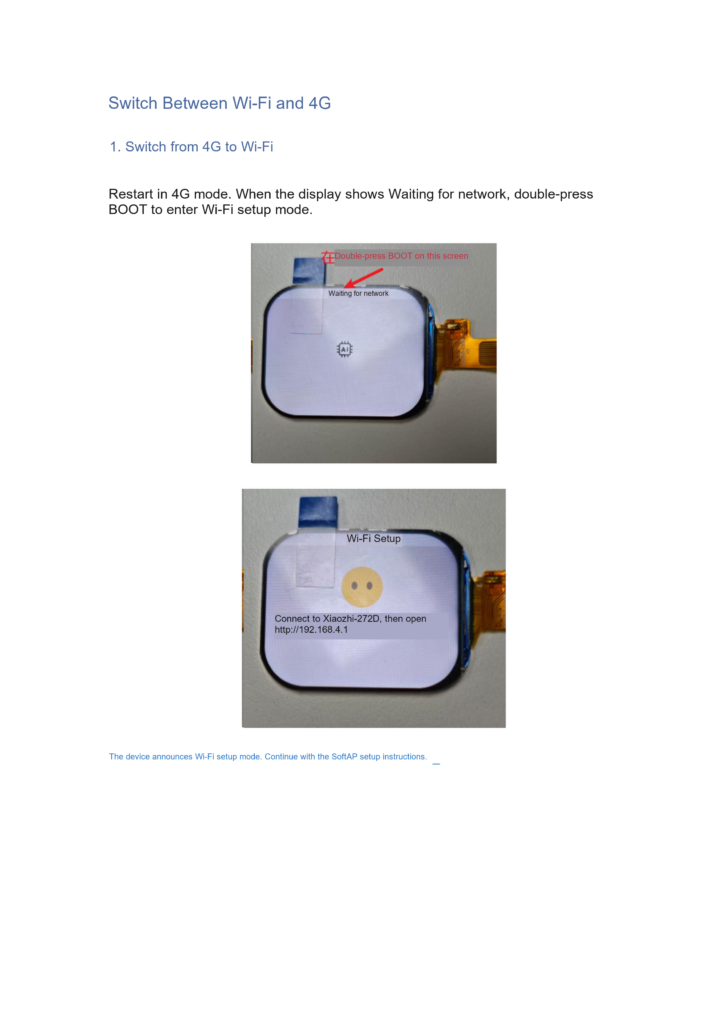
Switch from 4G to Wi-Fi
Page 115 gives this sequence:
- Restart the device from 4G mode.
- Wait for the screen to show “等待网络” (Waiting for network).
- Double-press BOOT while that state is displayed.
- The device enters Wi-Fi provisioning mode and announces the setup prompt.
- Follow the SoftAP procedure to connect to the device hotspot and enter the router settings.
Press BOOT twice while the device is waiting for the network. If the phone does not open a page after Wi-Fi provisioning starts, use the local setup address given in the accompanying instructions. The provisioning article linked below covers that procedure.
Switch from Wi-Fi to 4G
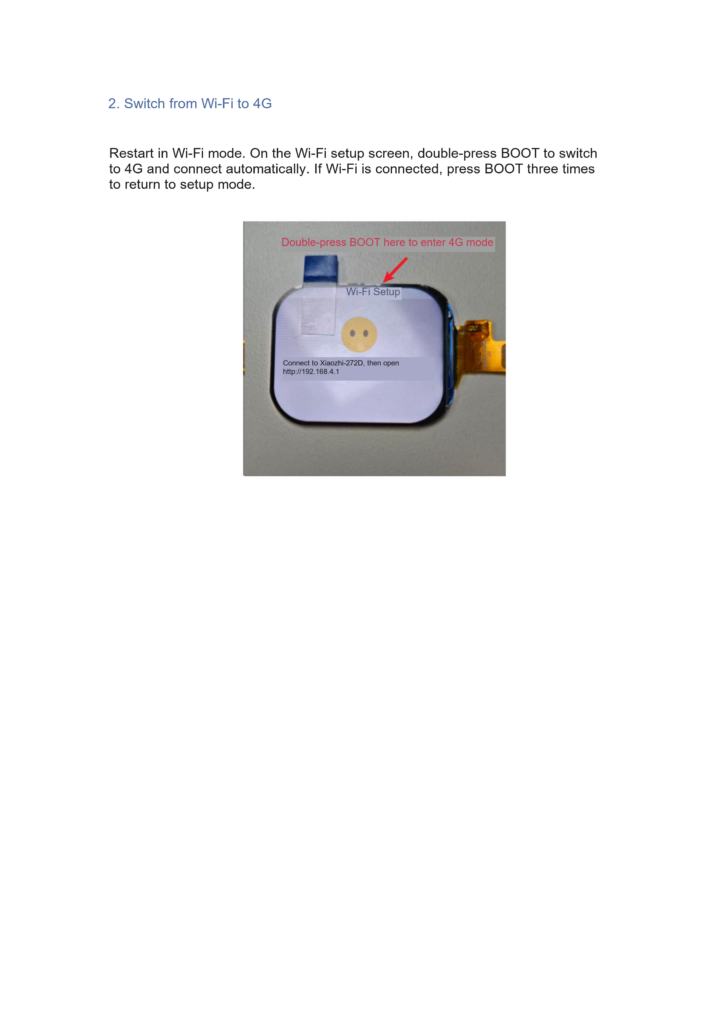
Follow page 116:
- Restart in Wi-Fi mode.
- Enter the Wi-Fi provisioning screen.
- Double-press BOOT on that screen.
- Watch for the device to switch to 4G and attempt a connection.
If Wi-Fi is already connected, the handbook says to press BOOT three times to return to provisioning. Wait for that screen, then double-press to switch. Check the screen between the two actions.
These actions depend on the firmware version. If the screen behaves differently from the handbook, check the release instructions instead of trying progressively more button presses.
BOOT, EN and Type-C have different roles
The AI-C5 chapter states that holding BOOT to turn power on or off works only when Type-C is disconnected. After flashing, the example uses EN to reset. A hold, double press, triple press and reset each have a different purpose.
| Action | Documented use |
|---|---|
| Hold BOOT with Type-C disconnected | Power on or off |
| Double-press BOOT while waiting for a network during 4G startup | Enter Wi-Fi provisioning |
| Double-press BOOT on the Wi-Fi provisioning screen | Switch to 4G |
| Triple-press BOOT while Wi-Fi is connected | Return to provisioning mode |
| Press EN after flashing | Reset and run |
For a button issue, record which button you pressed, how many times and what the screen showed so the operation can be reproduced.
Test both network modes
Confirm a network connection, then start a voice conversation. If the device is online but does not answer, check binding and server configuration. Signal status alone does not verify the full AI service.
Record startup, the first conversation, continued conversations and recovery after restart in both Wi-Fi and 4G modes. During disconnection tests, observe whether the firmware waits to reconnect, requires a manual switch or uses another recovery method. Do not assume automatic switching is available.
Assess power requirements and battery life separately for each network mode. The documents provide no comparative measurements, so equal operating time cannot be promised.
Related reading
- Provisioning a Xiaozhi AI device
- Comparing Xiaozhi AI development boards
Sources
- DOIT AI Development Handbook v1.0 (PDF), pages 107 to 116.
- DOIT AI Hardware Selection Guide 2026 (PDF), page 10.
Leave a Reply
You must be logged in to post a comment.