
After flashing a Xiaozhi AI device, connect it to the network and complete device setup on the service platform. A visible hotspot, a provisioning prompt or a submitted Wi-Fi password is an intermediate step. Start a conversation and check the reply to verify the full setup.
The DOIT handbook describes SoftAP hotspot provisioning and BluFi provisioning through the DOIT Assistant mini program. Check which method the installed firmware supports before following either procedure.
Which provisioning method should you use?
| Item | SoftAP hotspot provisioning | BluFi mini program provisioning |
|---|---|---|
| Phone connection entry point | The device’s Wi-Fi hotspot | DOIT Assistant in WeChat |
| Main actions | Open the device setup page, select the router and enter its password | Create an agent, find the device, select a network and enter its password |
| Prerequisite | Firmware supports hotspot provisioning and the device is in that mode | Firmware supports BluFi and allows the phone to discover the device |
| Follow-up in the handbook | Enter the device verification code in the Xiaozhi control panel | Complete device setup in DOIT Assistant |
BluFi uses Bluetooth to transfer network settings. It does not provide an independent cellular connection. Communication after provisioning depends on the product and firmware.
SoftAP: Connect to the device hotspot
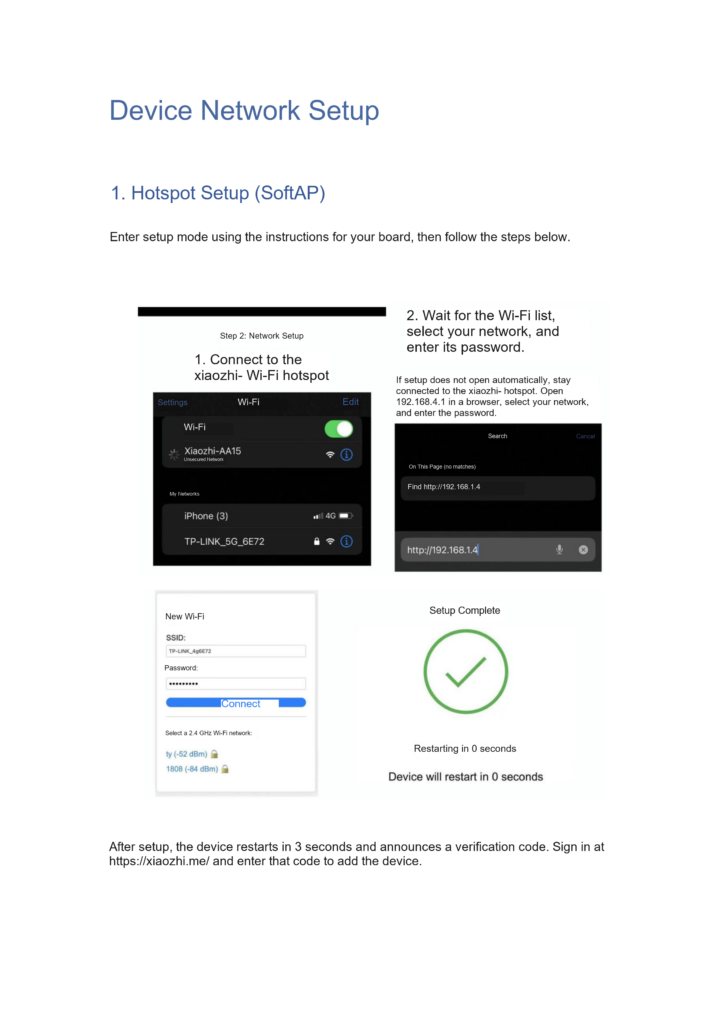
Enter provisioning mode using the instructions for your board. Button actions differ by model; a triple press on one device may not apply to another. Wait for the device’s spoken or displayed provisioning prompt before using the phone.
- Open the phone’s Wi-Fi list and connect to the device hotspot beginning with Xiaozhi- or xiaozhi-. Use the name shown by your device.
- Wait for the phone to open the provisioning page.
- If no page opens, stay connected to the device hotspot and enter
http://192.168.4.1in the browser address bar. - Select the router’s Wi-Fi network on the page, enter its password and submit.
- Wait for the device to report success and restart.
192.168.4.1 is the local setup address shown in the handbook. The phone must remain connected to the device hotspot to reach it. If the phone switches back to home Wi-Fi or another network, reconnect to the device first.
Use a network supported by the board. The example page lists 2.4 GHz Wi-Fi, while AI-C5 has a separate dual-band specification. Check the relevant documentation for 5 GHz support on other boards.
Bind the device after connecting to Wi-Fi
In the handbook’s SoftAP procedure, the device restarts after provisioning, asks you to add it in the control panel and reads out a verification code. Record that code, sign in to the Xiaozhi control panel and follow the device addition prompts.
Check networking and binding separately. The device must connect to the router and be recognized and bound by the platform. Complete platform setup before investigating microphone or wake-word problems.
After binding, use the wake phrase configured in the firmware to start a conversation. The handbook’s default is the Chinese phrase “你好小智” (Ni hao Xiao Zhi, meaning “Hello Xiaozhi”). If the device has a custom phrase, use that phrase instead.
BluFi: Set up the device in DOIT Assistant
With BluFi-capable firmware, follow the mini program procedure:
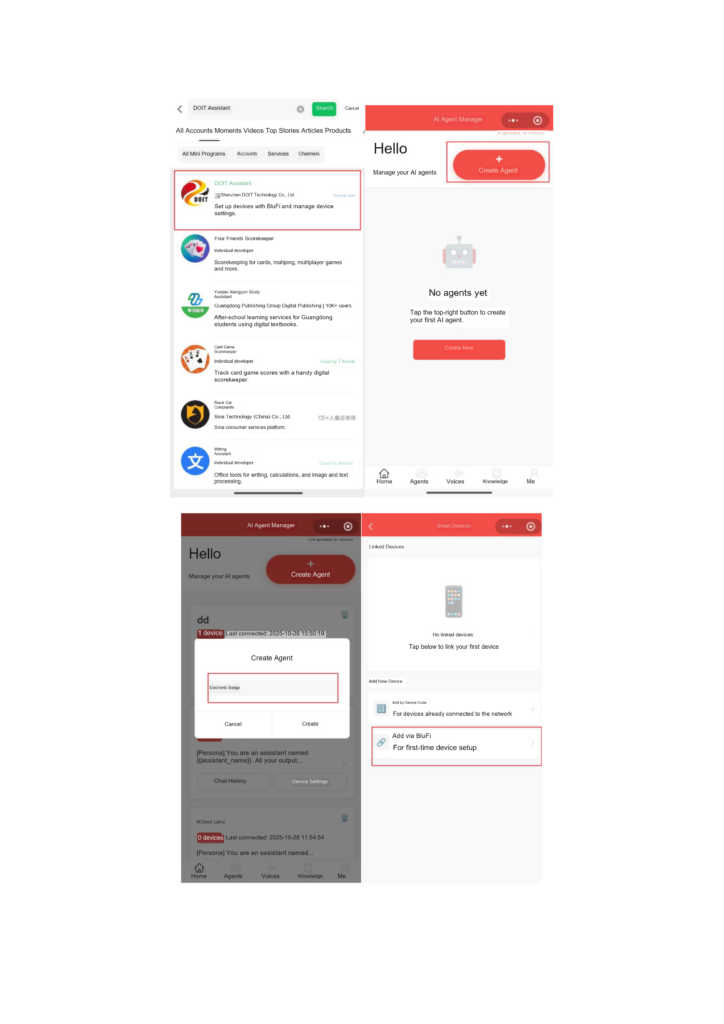
- In WeChat, search for and open “四博小助手” (DOIT Assistant).
- Choose the option to create an agent, enter a name and finish creating it.
- Open device configuration and select the BluFi device addition option.
- Search for nearby devices, identify the correct one and add it.
- Select the network, enter the Wi-Fi password and wait for setup to finish.
- Start a voice conversation and check that the device receives the request and responds.
If the phone cannot find the device, check BluFi firmware support and the device’s provisioning state, then check Bluetooth and mini program permissions. A Bluetooth chip alone does not make BluFi provisioning available; the firmware must enable it.
For the handbook’s AI-01 source build, select Doit-AI-01-Kit and set Net Configuration Mode to Blufi. The procedure also includes Bluetooth and encryption component settings. Follow the complete instructions starting on page 21 when building your own firmware.

Troubleshoot the stage that failed
| Where setup stops | What to check |
|---|---|
| Device hotspot is missing | SoftAP mode and firmware compatibility |
| Hotspot connects but the page will not open | Whether the phone is still on the device hotspot and the address was entered in the address bar |
| Connection fails after submitting the Wi-Fi password | Password, frequency band and network requirements |
| Device is online but cannot converse | Device binding, service configuration, wake state and device logs |
| BluFi cannot find the device | BluFi firmware, Bluetooth permissions and provisioning state |
Record the current state before changing provisioning methods. This helps avoid switching repeatedly between SoftAP and BluFi without knowing which stage failed. After networking and binding succeed, restart the device and test another conversation to check that the settings persist.
Related reading
- Development setup and the first flash
- Switching AI-C5 network modes
- Changing the VB6824 wake phrase
Sources
- DOIT AI Development Handbook v1.0 (PDF), pages 21 to 23 and 117 to 121. The setup address was checked against the screenshot on page 117.
- Platform link in the handbook: Xiaozhi control panel. Interface details and service steps depend on the firmware and platform versions used.
Leave a Reply
You must be logged in to post a comment.