




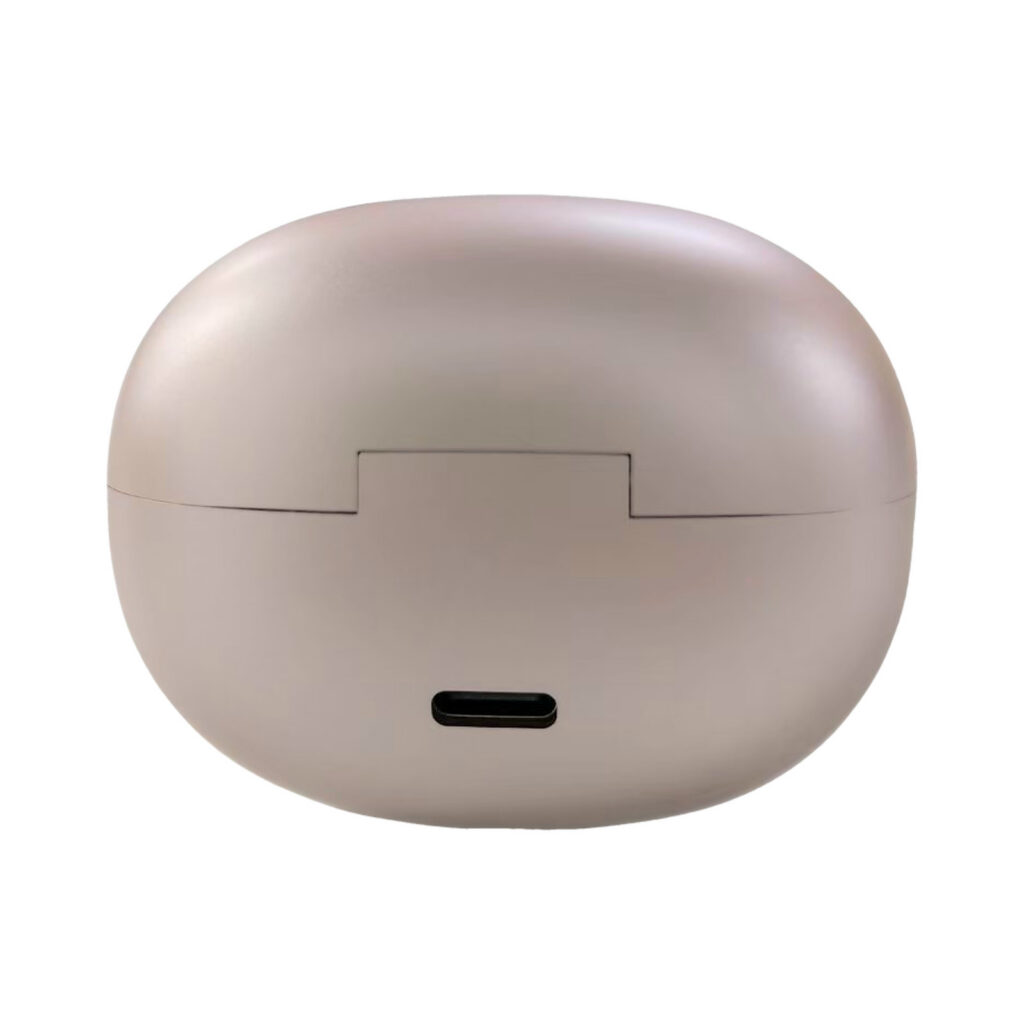



Description
Connected to your everyday
Listen. Talk.
Make it yours.
Bring AI conversations, call recordings and friend intercom together in one companion app. Personalize your earbuds and keep everyday controls close at hand.


01 / Your AI companion
A conversation.
Your choice of assistant.
Choose the AI service your earbuds use. With Xiaozhi, you can also shape the assistant’s personality and voice directly in the app.
Customize in the app
Xiaozhi
- Choose from the available AI models and voices.
- Edit the character name, assistant name, personality description and opening message.
- Save your preferences and revisit previous questions and replies in conversation history.
Alternative AI service
JD JoyInside
Switch to JD JoyInside for AI voice conversations. Manage its model, character and voice on the JD platform.
JD conversation history is not available in this app panel.
AI features require Internet access, a compatible device and an available AI service. Model and voice options are supplied by the selected service.
02 / Keep the conversation
Call recordings,
ready to revisit.
Enable automatic recording for calls made or received with the earbuds. Browse recordings for the current pair, or open your account’s recordings to see files from all your earbuds.
Enable recording
Turn on Call Recording in the device panel. Let the other participant know before recording.
Connect & upload
Enable your phone’s Bluetooth Internet sharing (PAN) so the earbuds can upload recordings.
Download & listen
Save a verified local copy. Play, pause and seek through downloaded recordings, including offline.
Export & organize
Export MP3 files using the phone’s supported sharing or storage options. Delete local copies when no longer needed.
Keep a local copy or export a backup. Once a download is verified and saved, its server copy is cleared. Cloud retention does not delete locally saved recordings. File export depends on your phone’s permissions and app support.
03 / A direct connection
Pair up.
Talk with a friend.
Pair two sets of compatible earbuds for Internet-based intercom. Select another pair in your account, or generate a six-digit pairing code for a friend.
Preview and accept invitations, check whether your partner is online, and change or remove the pairing in the app.
earbuds
earbuds
Two connected pairs. One conversation.
Both sets need Internet access. Use your phone’s Bluetooth Internet sharing (PAN) for intercom with the current app.
04 / Personalize your taps
Small gestures.
Everyday shortcuts.
Assign supported tap actions in the app. Double- and triple-tap shortcuts apply while the earbuds are idle; active conversations use the controls below.
| Gesture | Available settings |
|---|---|
| Single tap | None, or Answer Incoming Call. |
| Double tap | None; Play / Pause; Previous Track; Next Track; Volume Up; Volume Down; AI Conversation; Intercom; Phone Voice Assistant. |
| Triple tap | The same nine options as double tap, set independently. |
During a conversation
| Activity | Earbud controls |
|---|---|
| AI conversation | Double tap to interrupt spoken output. Triple tap to exit. |
| Friend intercom | Double tap to answer an incoming call; triple tap to decline. Double tap during a call to hang up, or while calling to cancel. |
| Phone call | Double tap to answer or hang up. Single tap can also answer when assigned to Answer Incoming Call. |
The controls above follow the current EARP02 guide. Other models or firmware may use different gestures; check the in-app Operation Guide for your earbuds.
05 / Choose how you connect
Two ways online.
Four ways to choose.
BLE routes supported voice features through the app’s Bluetooth connection. PAN lets the earbuds use your phone’s Bluetooth Internet sharing.
| Voice mode | How it works |
|---|---|
| PAN preferred | Use phone Internet sharing when available; otherwise use the app’s BLE connection. |
| BLE preferred | Use BLE while the panel is in the foreground; otherwise use PAN when available. |
| BLE only | Use the app’s Bluetooth connection. Keep the device panel open in the foreground. |
| PAN only | Use the phone’s Bluetooth Internet sharing connection. |
06 / Stay in control
Your earbuds,
at a glance.
Check the details that matter, adjust connection preferences and manage your account from the companion app.
Live device status
View separate left and right battery levels, single or dual earbud connection, phone and network status, charging indication and AI activity.
Idle disconnect
Set Bluetooth to disconnect after 1, 5 or 15 minutes, or 1 hour of inactivity. Choose Keep Connected to disable the idle timeout.
Device information
Check model, firmware, hardware version, Bluetooth address and serial number. Open the app’s device management to update the device name.
Account access
View your account, sign in with an existing access credential, and show, hide, copy or regenerate that credential.
Recording library
Filter all, local or cloud recordings. View files for one pair of earbuds, or across your account from the My tab.
Guidance & management
Check the active voice connection, open the gesture guide and unbind a connected device. Offline removal clears local records only.
Make the first connection.
Connect in the app
Add or select your earbuds in the companion app, then open the device panel.
Get online
Keep the panel in the foreground for BLE AI. Enable Bluetooth Internet sharing for intercom and recording uploads.
Personalize
Choose an available AI service, configure supported tap gestures and set your preferred voice mode.
Explore
Start an AI conversation with your assigned gesture, pair with a friend or enable call recording.


Reviews
There are no reviews yet.