
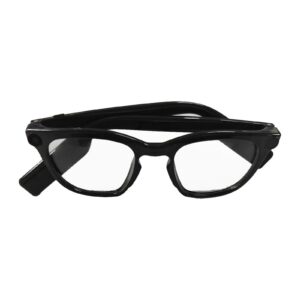
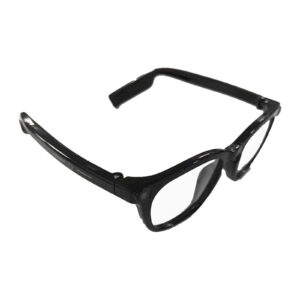
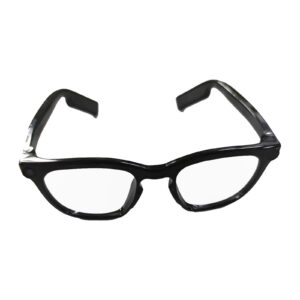
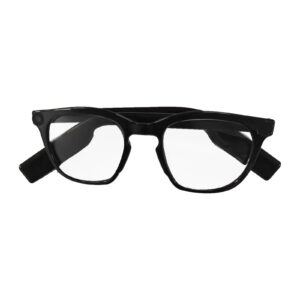
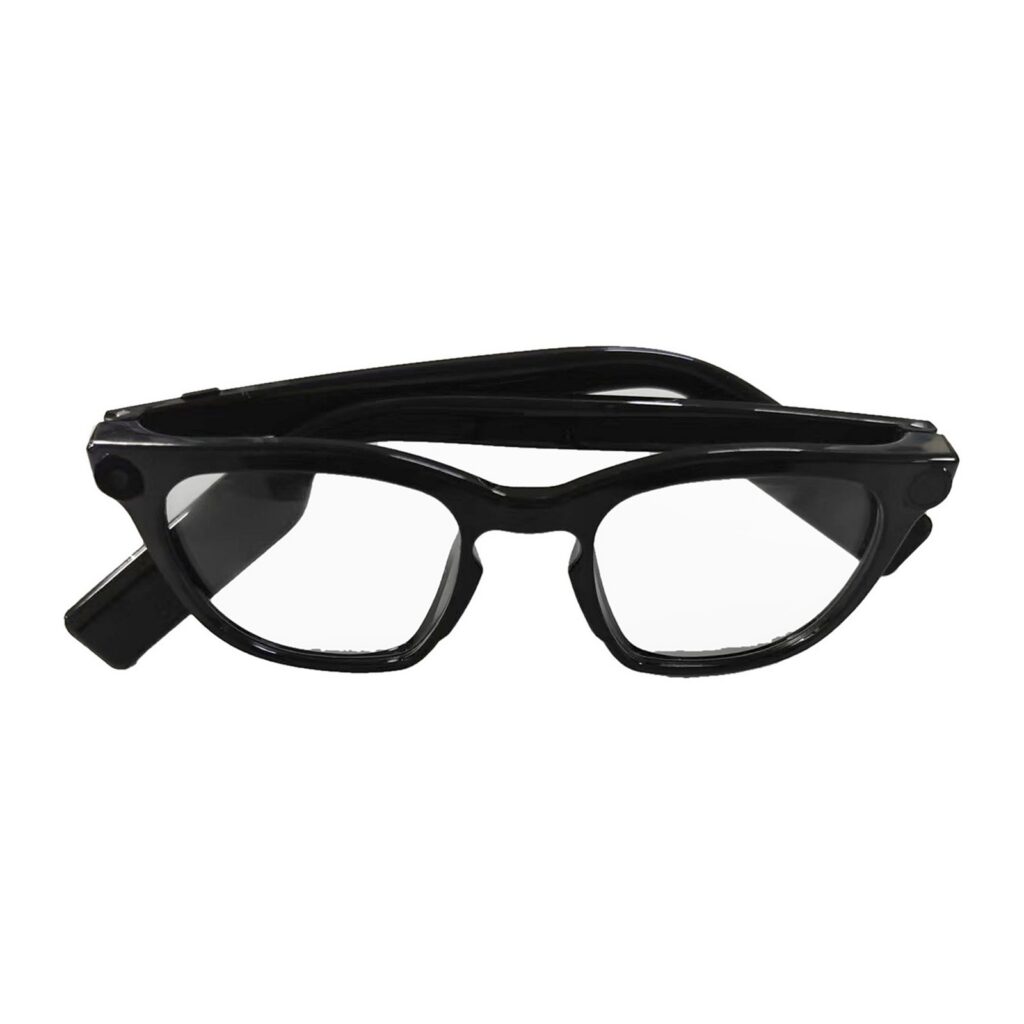
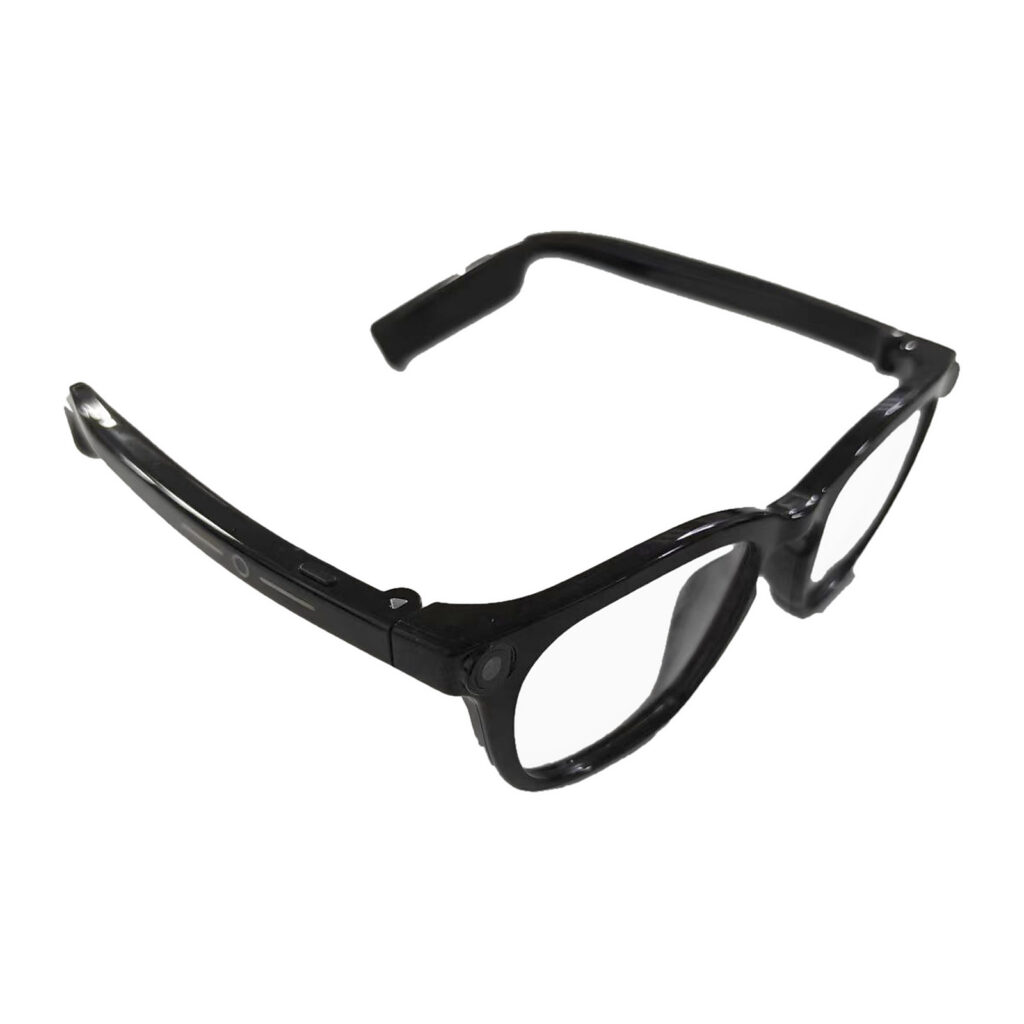
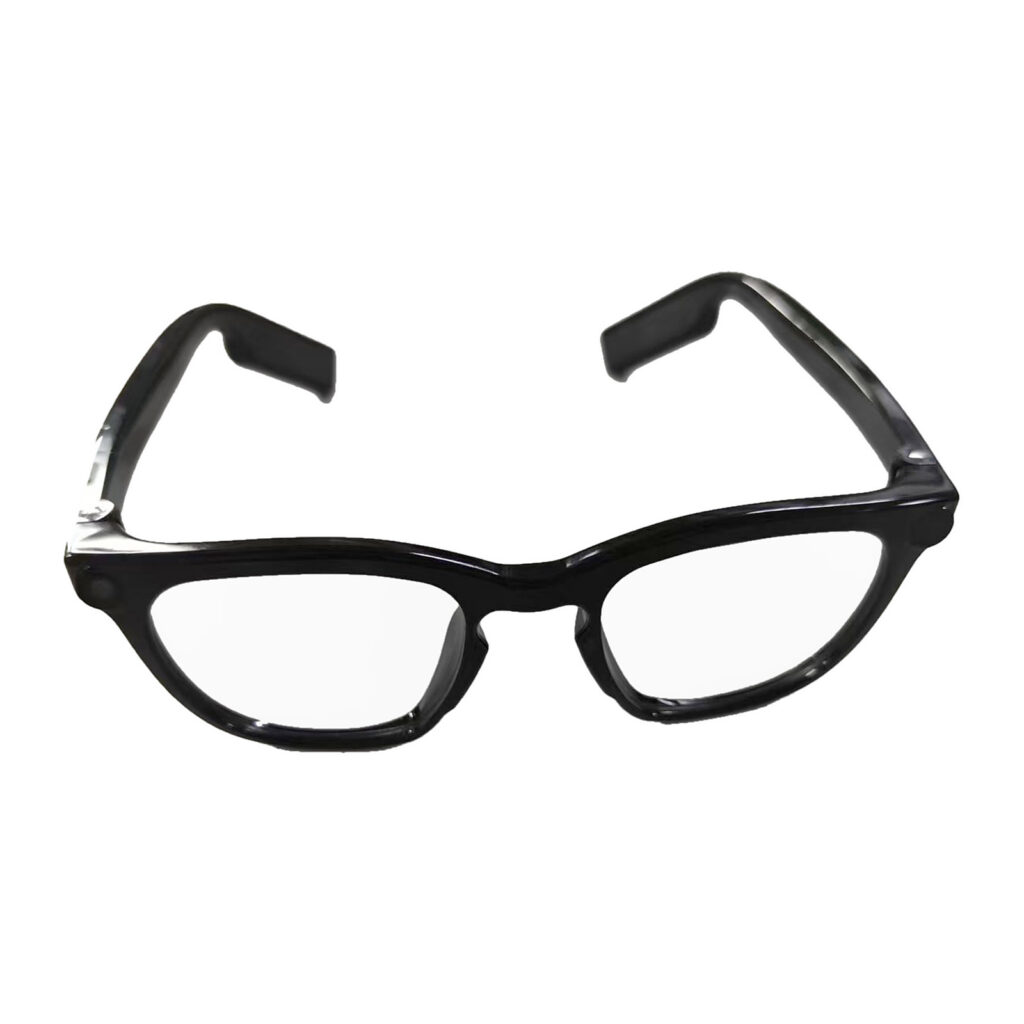
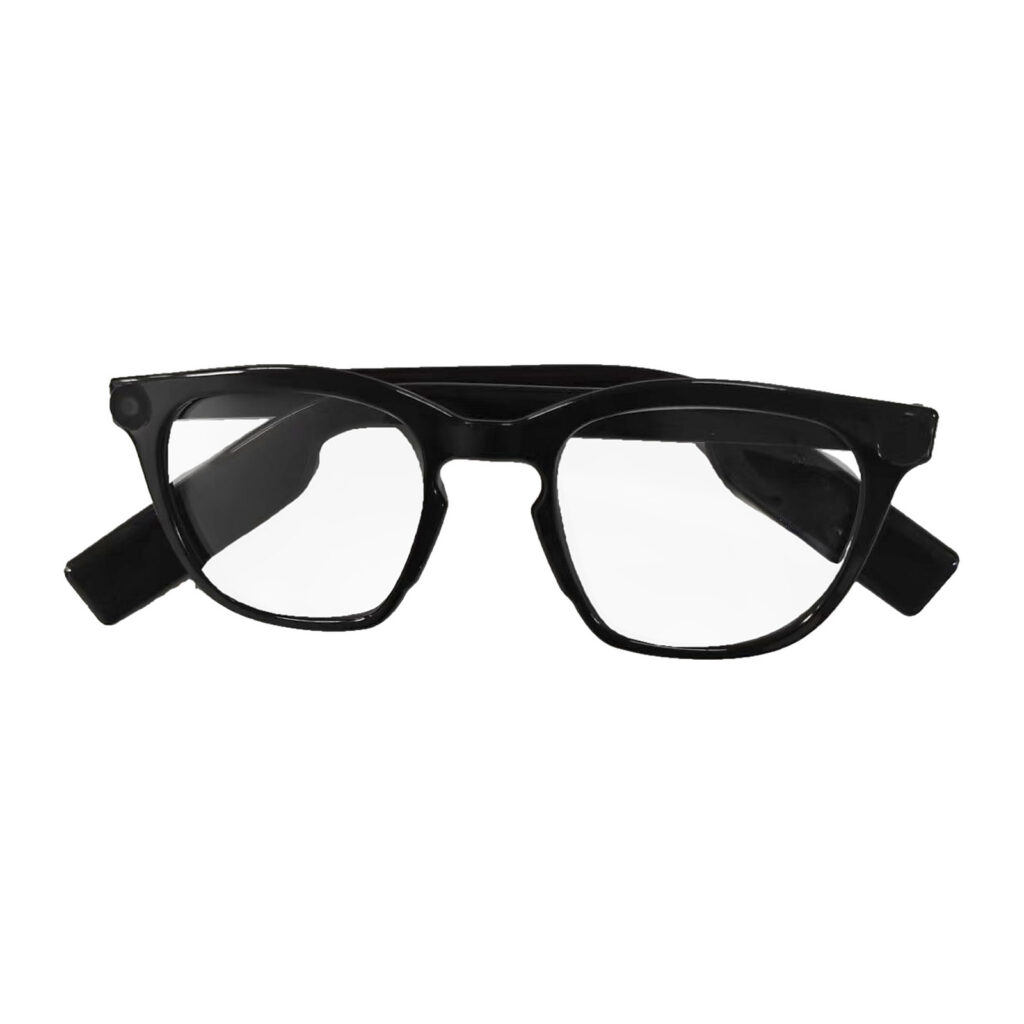


Description
Take photos and record videos at the press of a button. Connect your glasses to the CozyLife app to browse your media, transfer selected files or import everything at once, and save your favorite moments directly to your phone’s gallery.
AI smart glasses
Features & quick start guide
Listen. Capture.Ask more.
Music, phone calls, photos, video and audio recording, with connected AI assistance. Discover what your smart glasses can do and learn the controls in a few simple steps.

01 /
Start with your phone.
- STEP 1
Power on
Press the power button on the glasses. Listen for the voice prompt.
- STEP 2
Pair over Bluetooth
Enable Bluetooth on your phone and connect the glasses. You can then play music from your phone through the glasses.
- STEP 3
Connect for online AI
Enable Bluetooth tethering, also called Bluetooth internet sharing, on your phone to provide the glasses with internet access for AI mode.
02 /
Your everyday controls.

Music & calls
A tap, a swipe, a press.
Use the touch area for music playback and volume. Use the button to manage incoming calls and end a conversation.
A touch-area gesture and a button press are different controls. Button actions also depend on whether a call is incoming or active.
| Function | Control | How it works |
|---|---|---|
| Play / pause music | Double-tap the touch area | Double-tap to pause. Double-tap again to resume playback. |
| Adjust volume | Swipe the touch area | Swipe to increase or decrease the listening volume. |
| Answer a call | Press the button once | When an incoming call rings, press once to answer. |
| Reject a call | Press the button twice | When an incoming call rings, press twice to reject it. |
| End a call | Press the button once | During an active call, press once to hang up. |
03 /
Three ways to capture.
Take a photo
Press the button once to take a photo.One press. One photo.
Record video
Press the button twice to start recording video.Press twice again to stop.
Record audio
Press the button three times to start an audio recording.Press three times again to stop.
Video recording light: The front light turns on while video is recording and turns off when recording stops.
04 /
Bring your captures to your phone.

- Enable the glasses’ hotspotPress and hold the touch area to turn on the hotspot.
- Open the companion appConnect the glasses in the app.
- Join the glasses’ Wi-Fi hotspotConnect your phone to the hotspot created by the glasses.
- Select and download your filesBrowse Photos, Videos or Audio Recordings in the app. Download your captures to your phone; saved photos and videos can be viewed in the phone’s gallery.
Two connections, two purposes: Bluetooth tethering shares your phone’s internet connection with the glasses for AI. The glasses’ Wi-Fi hotspot connects your phone to the glasses for file transfer.
05 /
Ask. Listen. Keep exploring.
Activate AI mode to ask questions and hear spoken responses through the glasses.
- Keep the glasses paired with your phone over Bluetooth.
- Enable Bluetooth tethering / internet sharing on your phone.
- Press and hold the button to activate AI mode. Wait for the connection prompt, then speak your request.
Online AI requires internet access through your paired phone.
Weather information
Get ready for the day.
Ask about the weather in a city and listen to a spoken summary of the conditions.
Travel planning
Find ideas for your next trip.
Request an itinerary with ideas for sightseeing, local food and places to visit.
Connected status
Keep an eye on your glasses.
Check battery status on your connected phone. Where supported, your phone’s audio controls also provide a headphone audio-level readout.

Reviews
There are no reviews yet.