



Description
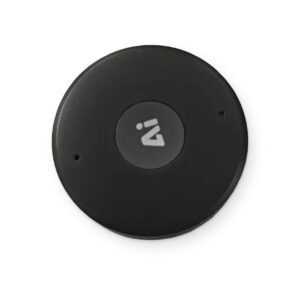
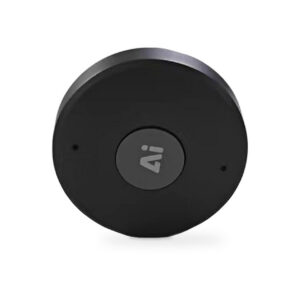
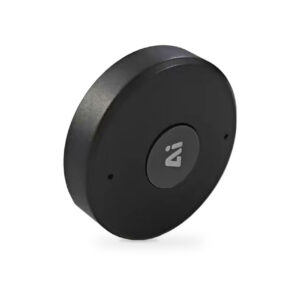
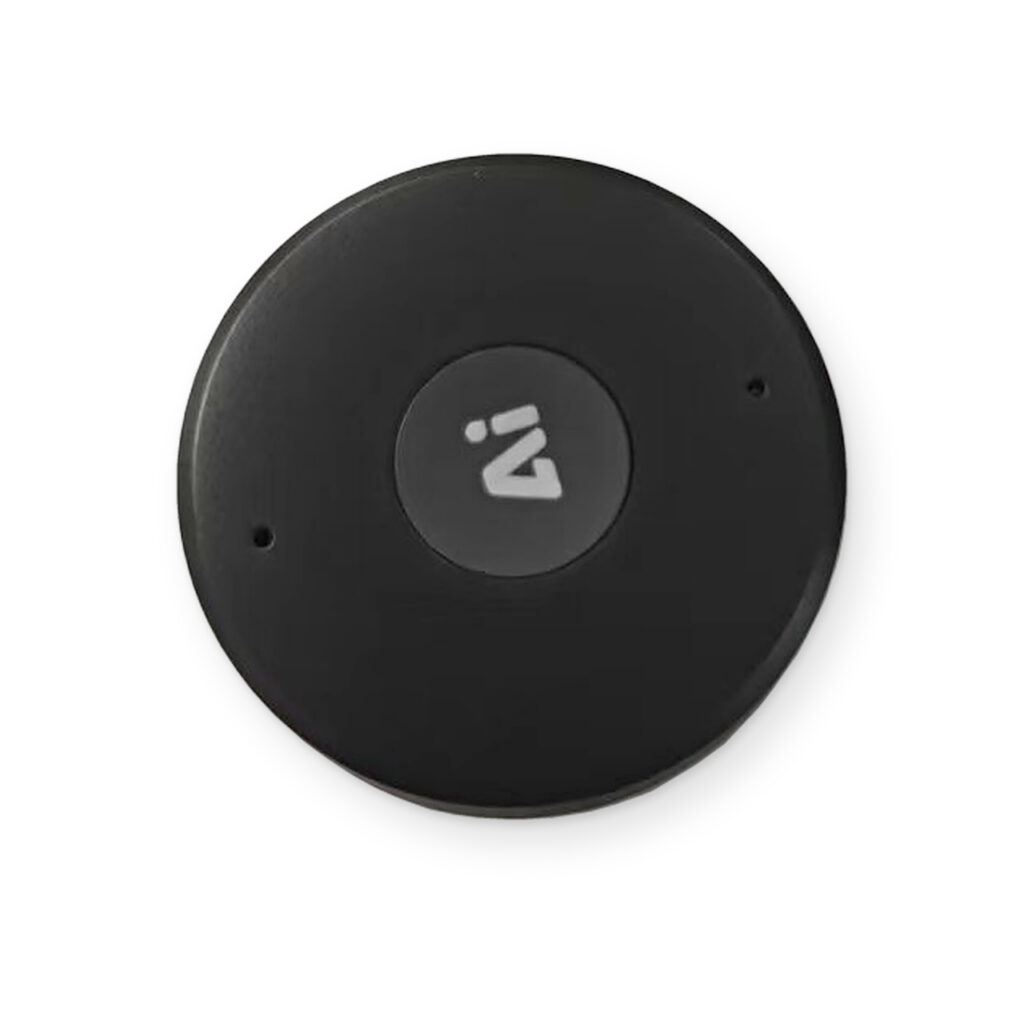
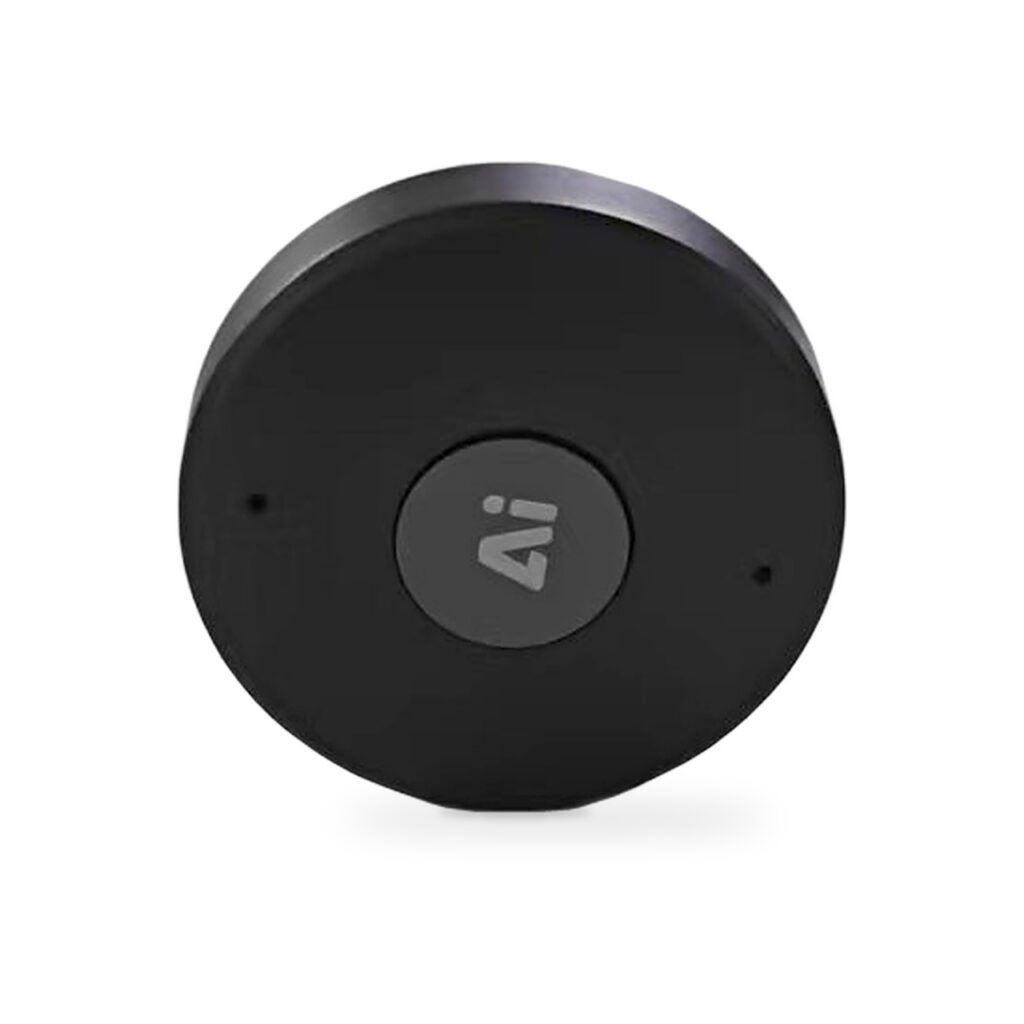
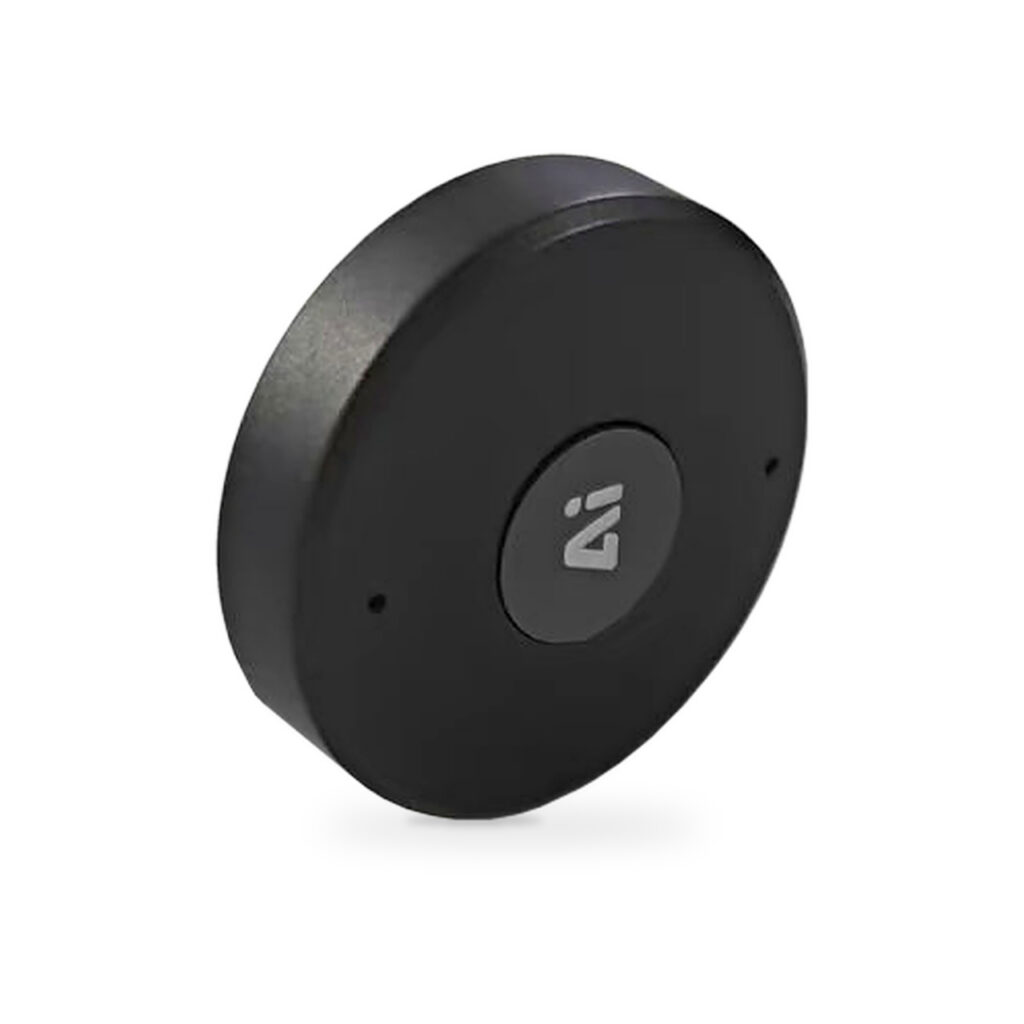
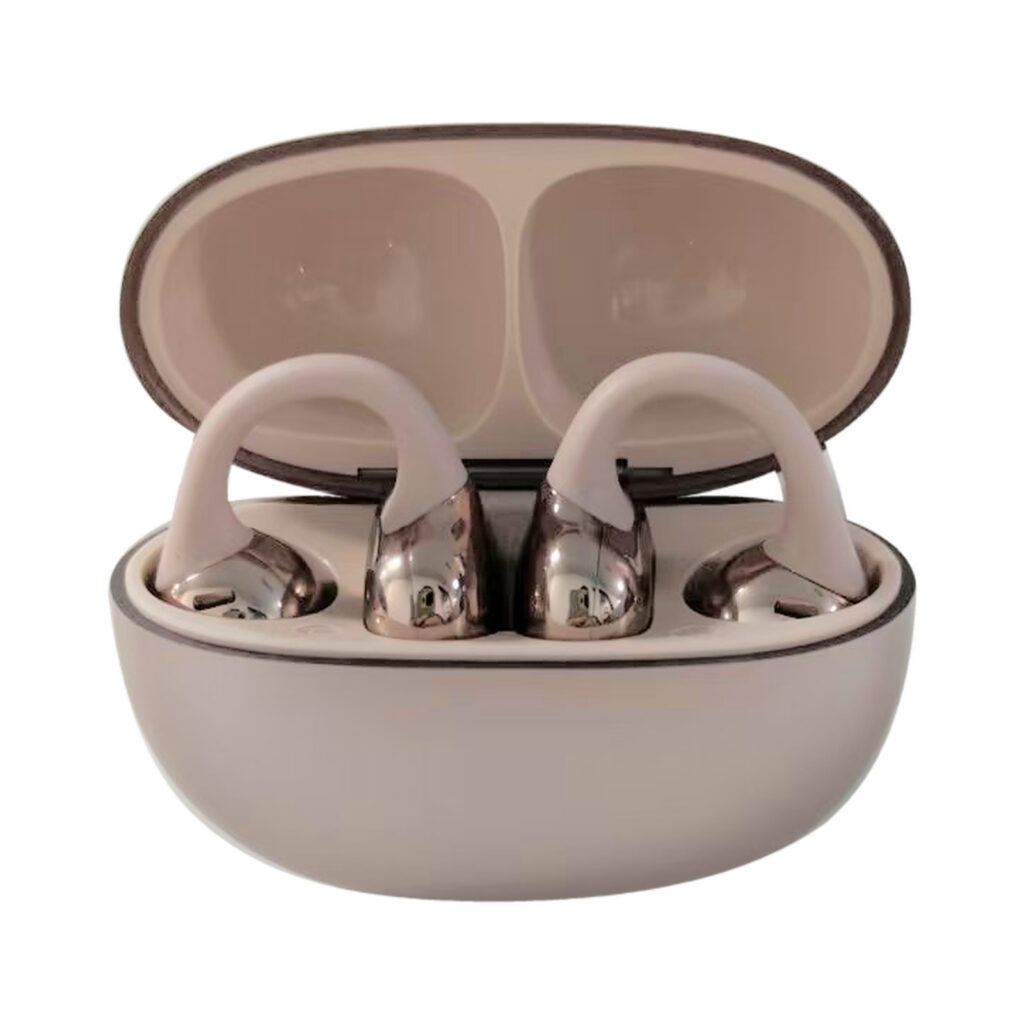
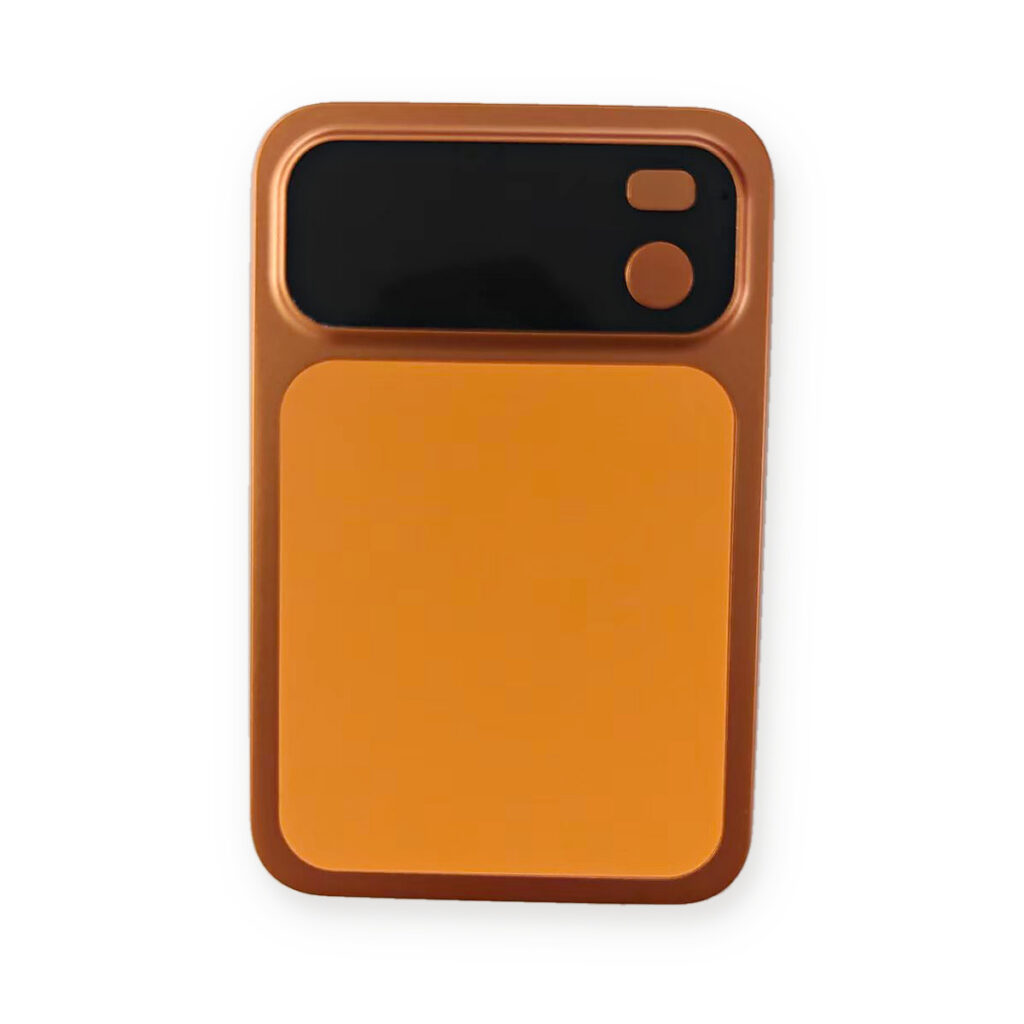
Meet Recording Bean, a compact voice recorder for capturing meetings, lectures, and everyday ideas. Use its companion app to control recording, manage audio files, and transfer recordings via Wi-Fi. Its small, portable design makes it easy to carry wherever you go
BEAN.
FEATURES & QUICK START GUIDE
Recording Bean / Smart voice recorder
Your recordings.
Within reach.
A compact voice recorder with phone-based controls. Capture audio, manage your recordings and save files to your phone through the companion app.

01 / CONTROL
Record from your phone
Start, pause and stop in the app.
02 / AUDIO
Choose your mode
Original or Noise Reduction.
03 / FILES
Keep recordings handy
Browse, download and delete.
04 / CONNECTION
Transfer over Wi-Fi
Connect directly to the recorder.
Start here
Connect. Take control.
01 /
Add your recorder
Enable Bluetooth on your phone. Open the companion app, choose Add Device and select your recorder.
02 /
Open the device
Finish adding the recorder and open its device page. Check that its connection status shows Connected.
03 /
Get ready to record
Open the Recording tab. Check battery level and remaining storage, then choose your recording settings.
01 / Recording
Start with a tap.
Control your recording from the phone while keeping the session status in view.
- In Device settings, turn Device Wi-Fi off before recording.
- Open Recording and tap the red Record button to begin.
- Follow the elapsed time, recording status and waveform display. A Pause control is available during recording.
- Tap Stop to finish and save the recording. Open Files to find it.
Before every recording: turn off Device Wi-Fi. The app displays a reminder when it is still enabled.

02 / Recording options
Set up your session.
Choose the available audio mode and recording scene in the Recording tab.
Original / Noise Reduction
Switch between the two recording modes before starting your session.
Normal / Phone-call Recording
The app provides separate recording-scene selections for normal recording and phone-call recording.
Silent Recording
A Silent Recording switch is available in the recording settings.
Battery & storage at a glance
View device battery percentage and remaining storage on the recording screen.

03 / Your recording library
Find it. Save it. Keep it.
Open Files to browse the recordings stored on your device, with a date, time and file size for each entry.
- Tap Refresh to update the recording list.
- Tap the Download icon beside a recording to save a copy to your phone.
- Follow the transfer progress and wait for the saved-to-phone confirmation.
- Use the Delete icon when you want to remove a recording from the device.

04 / Wireless file transfer
Connect directly over Wi-Fi.
Use the recorder’s Wi-Fi connection to transfer recordings to your phone.
- Finish your recording, then open Device and enable Device Wi-Fi.
- Open your phone’s Wi-Fi settings and join the recorder’s network. Use View device Wi-Fi password in the app if needed.
- Return to the app and check the Wi-Fi connection status. Refresh Wi-Fi status is available in Device settings.
- Open Files and download your recordings. Turn Device Wi-Fi off before recording again.

05 / Device settings
Manage access and indicators.
Keep the recorder’s connection and access options together in the Device tab.
Computer access
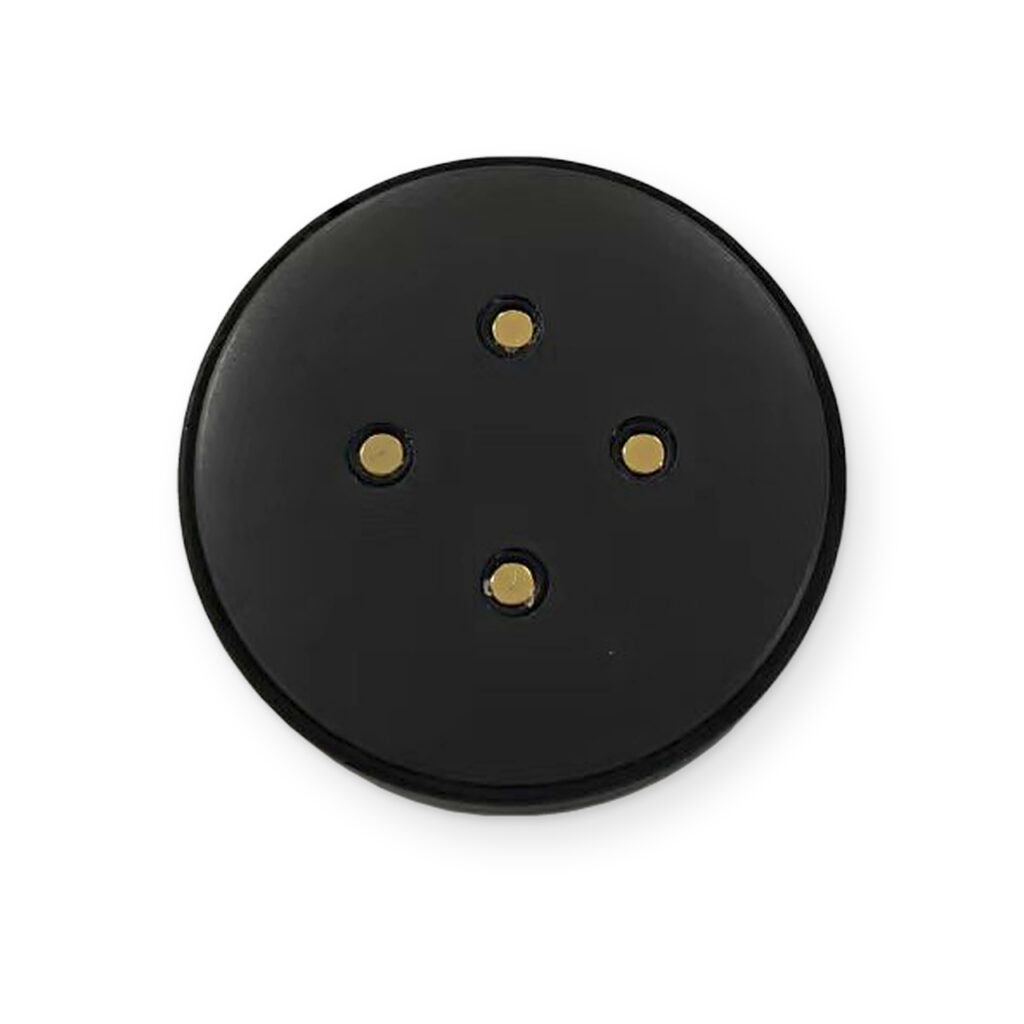
The app includes Allow Computer Access and Block Computer Access options for managing access to recordings. The Allow option refers to connecting with a data cable.
Recording indicator
Use Turn Off Indicator While Recording to control whether the device indicator stays off during a recording.
Connection information
View connection status and software version, refresh Wi-Fi status and check the device Wi-Fi password.



Reviews
There are no reviews yet.